
Hotel Room QR Card Print & Wi-Fi Management
Custom card sizes (A6 105×148, 100×100, 90×50mm, etc.). Automatic generation of in-room service & Wi-Fi QR cards upon setup, with one-click batch PDF print.
A6 · 105 × 148 mm · With Wi-Fi (Vertical Flagship)
Most popular format for bedside tables and desks. Top guest portal QR with bottom automated Wi-Fi connection QR.
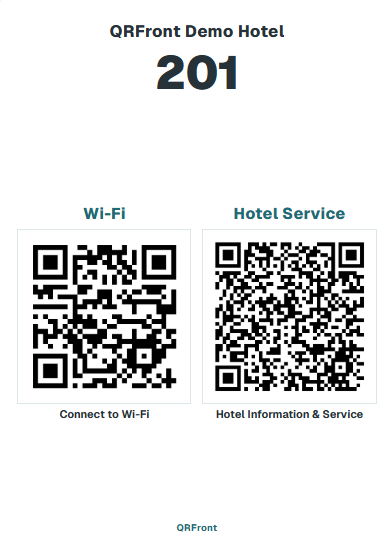
Automated QR Card Generation via Admin Room & Wi-Fi Settings
Register floor & room numbers in admin
Input hotel-wide or per-room Wi-Fi credentials
Automatically generate cards & download batch PDF
Full Support for 20+ Global Standard Sizes & Millimeter Custom Dimensions
20+ Formats + Custom mmFrom hotel flagship A6 (105×148mm) to ISO A, ISO/JIS B, North American inch specs, slim cards, square series (100/150/200mm), and millimeter custom sizes. Download print-ready vector PDFs in one click.
✓ Batch PDF export for all rooms · Optional Wi-Fi inclusion · Automated room number matching
Card Size
A6, Square, 90×50 & 20+ Formats
Wi-Fi / Service
Dual QR or dedicated service
1-Click Print
High-res vector PDF
In-Room QR Card Size Guide & Print Formats
From flagship A6 (105×148mm) to square cubes, business cards, ISO A/B, North American standards, and millimeter custom dimensions for any acrylic stand.
1. Hotel Flagship Standard: A6 · 105 × 148 mm
#1 Most Popular · System DefaultA6 · 105 × 148 mm
With Wi-Fi (Vertical Flagship)
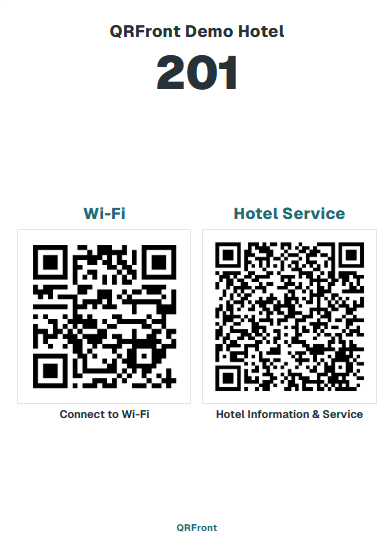 A6 · 105 × 148 mm
Most popular format for bedside tables and desks. Top guest portal QR with bottom automated Wi-Fi connection QR.
A6 · 105 × 148 mm
Without Wi-Fi (Dedicated Service Stand)
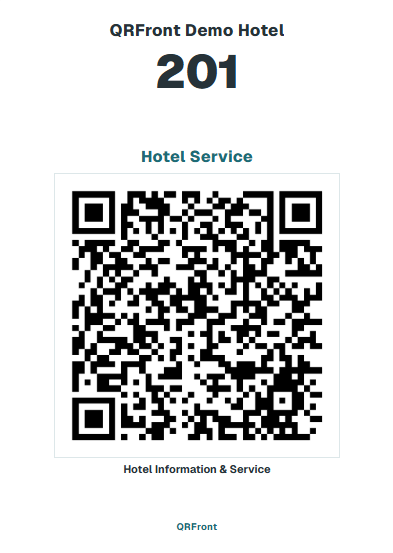 A6 · 105 × 148 mm
Maximizes portal QR size with prominent hotel logo and room number. Best when Wi-Fi is already open or posted on room walls.
2. Square Cube Stands & Keycard Pocket Mini Cards
Tailored for square acrylic cubes or keycard holder slotsSquare 100 · 100 × 100 mm
With Wi-Fi (Square)
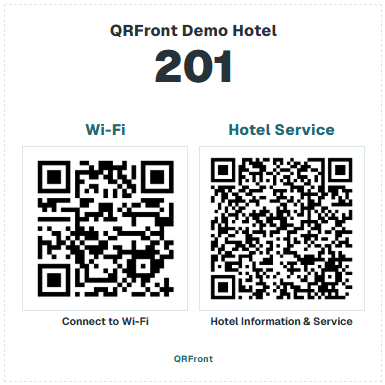 100 × 100 mm
Modern square cube stand layout. Upper guest portal QR with lower 1-tap Wi-Fi auto-connect QR.
Square 100 · 100 × 100 mm
Without Wi-Fi (Square)
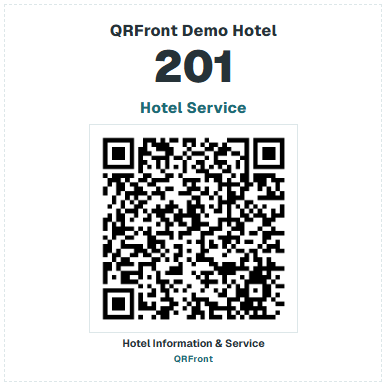 100 × 100 mm
Centered oversized guest portal QR and room number on a clean square card.
Business card · 90 × 50 mm
With Wi-Fi (Mini Card)
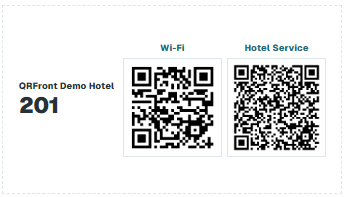 90 × 50 mm
Compact 90×50mm format pairing Wi-Fi scan and guest portal side-by-side. Fits keycard wallet sleeves.
Business card · 90 × 50 mm
Without Wi-Fi (Mini Card)
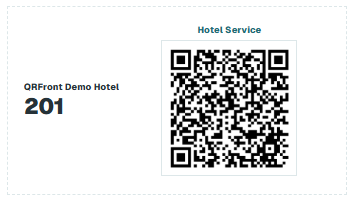 90 × 50 mm
Standard 90×50mm business card size. Slides into keycard envelopes or occupies minimal desk space.
3. Admin-Supported Global Print Size Catalog (20+ Formats & Custom mm)
Standard sizes available directly from the admin "QR Management & Print" dropdown menu.
Select your preferred size in admin. Cards are generated automatically with matching room numbers and Wi-Fi credentials.
Core Features & Benefits
Zero outsourced design costWide Range of Custom Card Sizes
Supports flagship A6 (105×148mm), Square 100 (100×100mm), business cards (90×50mm), plus ISO A/B, North American standards, and any millimeter custom dimensions.
Wi-Fi Direct Connection & Service Dual QR
Camera scan connects instantly to Wi-Fi without typing passwords. Choose between dual QR cards combining Wi-Fi & service or dedicated oversized service cards.
One-Click High-Res Vector PDF Batch Printing
Download print-ready high-res vector PDFs for all rooms in one click without design agency costs. Automatically sorted by floors and room numbers for standard printers.
Automated Generation via Admin Room & Wi-Fi Settings
Simply save room numbers and Wi-Fi credentials in admin. QR cards are automatically rendered in your selected format ratio. When credentials change, re-print instantly.
Simple 3-Step Batch QR Printing Process
Zero staff training requiredRegister room numbers and floors in admin to automatically bind unique secure links for each room.
Configure property-wide or per-room Wi-Fi SSID and password in one place.
Select your preferred stand size (A6, Square 100, business card, etc.) and download the high-res print-ready PDF immediately.
Detailed Technical Specifications & Operating Policies
Hotel Room QR Card Print & Wi-Fi Batch Management
QRFront provides a complete QR print management solution that automatically generates customized room QR cards based on the room and Wi-Fi configurations set in the hotel admin, and prints them in one-click batch PDF sized perfectly for your acrylic stands.
---
1. Custom Card Sizes for In-Room Stands
Freely choose and print card formats tailored to your bedside nightstands, desks, or keycard holders.
- 100 × 100 mm (Square Format): Balanced square format for standard tabletop acrylic stands. Supports dual QR (Wi-Fi + Service) or single large QR.
- 90 × 50 mm (Business Card / Mini Format): Compact horizontal card size, ideal for keycard sleeves or slim tabletop mini-holders without cluttering the desk.
- 100 × 148 mm (Vertical Stand Format): The traditional vertical stand dimension favored widely by hotels worldwide.
- Full Custom Millimeter Sizing: Configure custom width and height in millimeters to match any existing stand, holder, or wooden display block you already own.
---
2. 1-Tap Wi-Fi & Hotel Services in One Card
Wi-Fi is the first thing guests ask for upon check-in. QRFront solves both Wi-Fi connectivity and digital room service with a single card.
- Zero-Typing Camera Scan: Scanning the QR code with a smartphone camera connects or copies the SSID and complex password immediately without manual typing.
- Flexible Card Options:
- Dual QR Cards (Wi-Fi + Service): Wi-Fi on the left, Guest Portal on the right — complete in-room guidance on a single tabletop card. - Single QR Cards (Hotel Service Only): For open Wi-Fi or properties with separate Wi-Fi cards, highlight the hotel service QR prominently in the center.
---
3. Seamless 3-Step Automated QR Generation
No separate graphic design work or third-party QR code generators required. Setting up your admin console completes every room QR automatically.
- Room Setup (`/admin/rooms`): Add floors and room numbers; secure unique room URLs bind automatically within the platform.
- Room Wi-Fi Settings (`/admin/wifi`): Input the hotel or per-room Wi-Fi network SSID and password.
- QR Management & Print (`/admin/qr-print`): QR codes for all rooms are automatically generated according to your rooms and Wi-Fi credentials, ready for immediate preview and batch printing.
---
4. One-Click Batch PDF Print & Placement
Manage printing for properties with dozens or hundreds of rooms in just a few clicks.
- One-Click Batch PDF Export: Download and print cards for all rooms at once in crisp, high-resolution vector PDF.
- Floor-by-Floor Grouping: Organize printouts by floor to streamline housekeeping rollouts and quality control checks.
- Clear Room Number Matching: Every card features prominent room numbers (e.g. Room 201) and your hotel branding, preventing misplacement during room prep.